Calculate YOUR first settlement
Explanation
Let's try to calculate a first settlement. Assuming that contact management, finance and customers are set up, everything starts by the institution.
- Then we move on to the contact
- Then we assign a stay with a room to a beneficiary
- Then we configure the services and prices
- Then we set the rules
- Then we run the calculation
Before you begin with this E-Care process, you should be comfortable with Business Central handling and processes.
The story
We are working in an institution managing care apartments and nursing rooms. John Doe is contracting a nursing room from the 1st of January 2023. He enters the room from the 10th and get an evaluation of level 4. The 16 he's going to hospital and comes back the 19th. His stay then continues quietly.
The institution
On your institution, fullfill the information, set the date from when this institution should be active Institution Enable From, chose the corresponding Care Rating Code.
Under the menu E-Care, select VCR-N° and enter the value accordingly. For the current example, let's say you have a setuped VCR-Type Codes for Care, Nursing and maybe for Acute Care. Additionally, each of them can be selected for Somed use.
On your VCR list, the Electronic Payment flag indicates that the massprinting won't print it out (unless forced). Once VCR's for specific VCR-Types are filled, you can begin to configure the department.
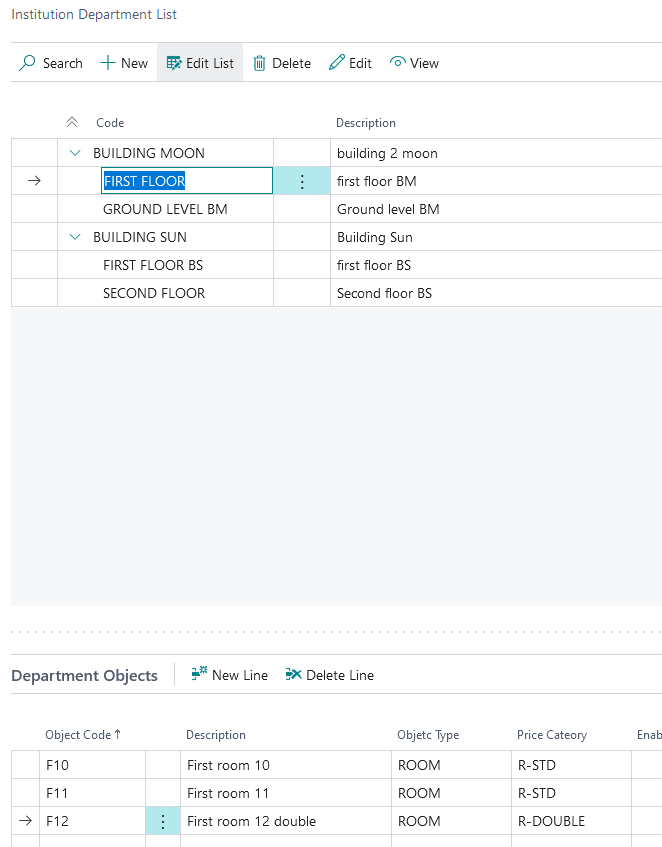
Under the menu E-Care, select Department and define the structure of your institution. Do-it yourself and build your own tree structure. Our storyboard says we have 2 buildings each with 2 floors, the first building is for nursing rooms and the second for care apartments. Once the structure is ready, insert the objects (rooms/apartments) on the lower part of the page. For each object you define the type (used later on the rules) and the price category (used later on the service).
The contact
Once a contact exists, you can create it as a beneficiary. From the contact list/card, select Beneficiary under Actions|Functions|Create as|Other. A beneficiary is now generated as well as a customer. These 3 entities are strongly linked.
The beneficiary
Open the new beneficiary and fillout the related values, don't forget to Activate it.
Once done, it's necessary to assign it a Stay. Under the menu Care|Stay insert a stay by specifying the contract start, the entry date, select the room and the kind of stay it is (long/short...).

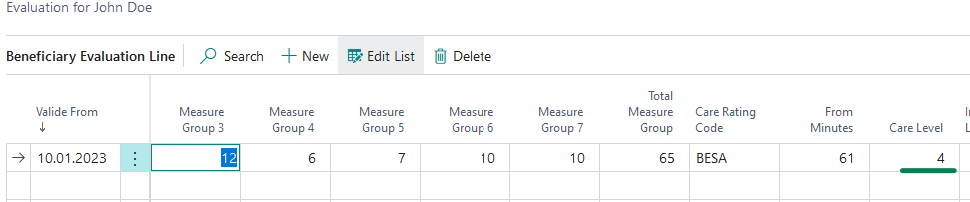
If it's a nursing stay, you need to indicate the Evaluation (Care Level) for this beneficiary. Under the menu Care|Evaluations insert a line based on the Rating selected for your institution.
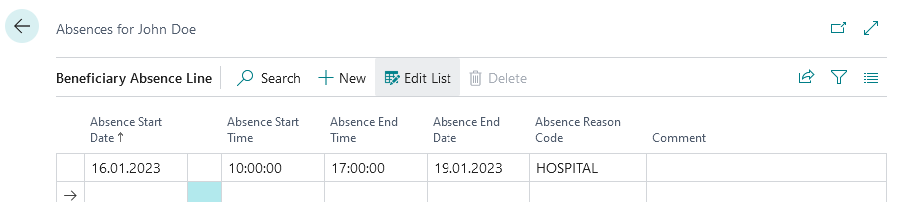
Don't forget our story, let's enter the Absence line, under Care|Absence create a line like the picture below:
To ensure a correct invoicing, prepare its Addressbook. Begin with Address Type, use the Tell-me and search for Address type. Important types are: Insurance 1 and PA Garantor as recipient for specific invoices. You can link the Industry Group (for marketing purposes) to the address types so when you select a contact, it is automatically assigned to the indicated group.
From a beneficiary, using menu Care|Address Book, you can define which contact is for which type.
Please note that for Insurance and PA Garantor, as they will be invoiced, they must be Customers.
The service
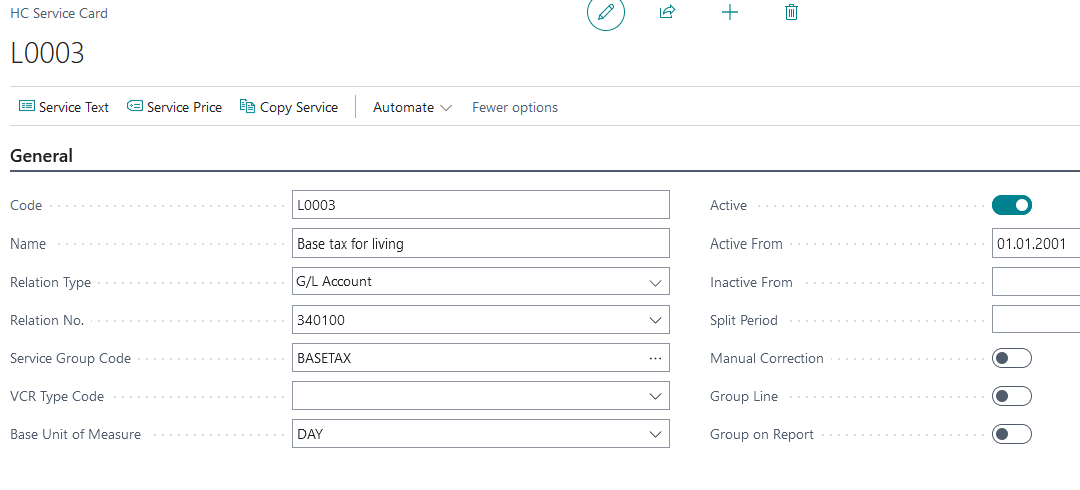
To configure the infrastructure service (room or apartment), from the E-Care Role Center, select Care|Service List. Create your first service. Use this link to understand the available fields.
Important fields are: Relation type and Relation No., Service Group Code, Active, price category for rooms/apartments, and Care level for invoicing evaluation based care services.
The service prices
Set the Service Price by selecting the homonymous menu, and create lines to define pricing per category and/or per kind and/or per date and/or ...
For our room, the prices are defined as follows:

The nursing service and price
Let's configure the nursing service for our example, i.e. Level 4. See screenshot below and pay particular attention to the Care Levelfield:
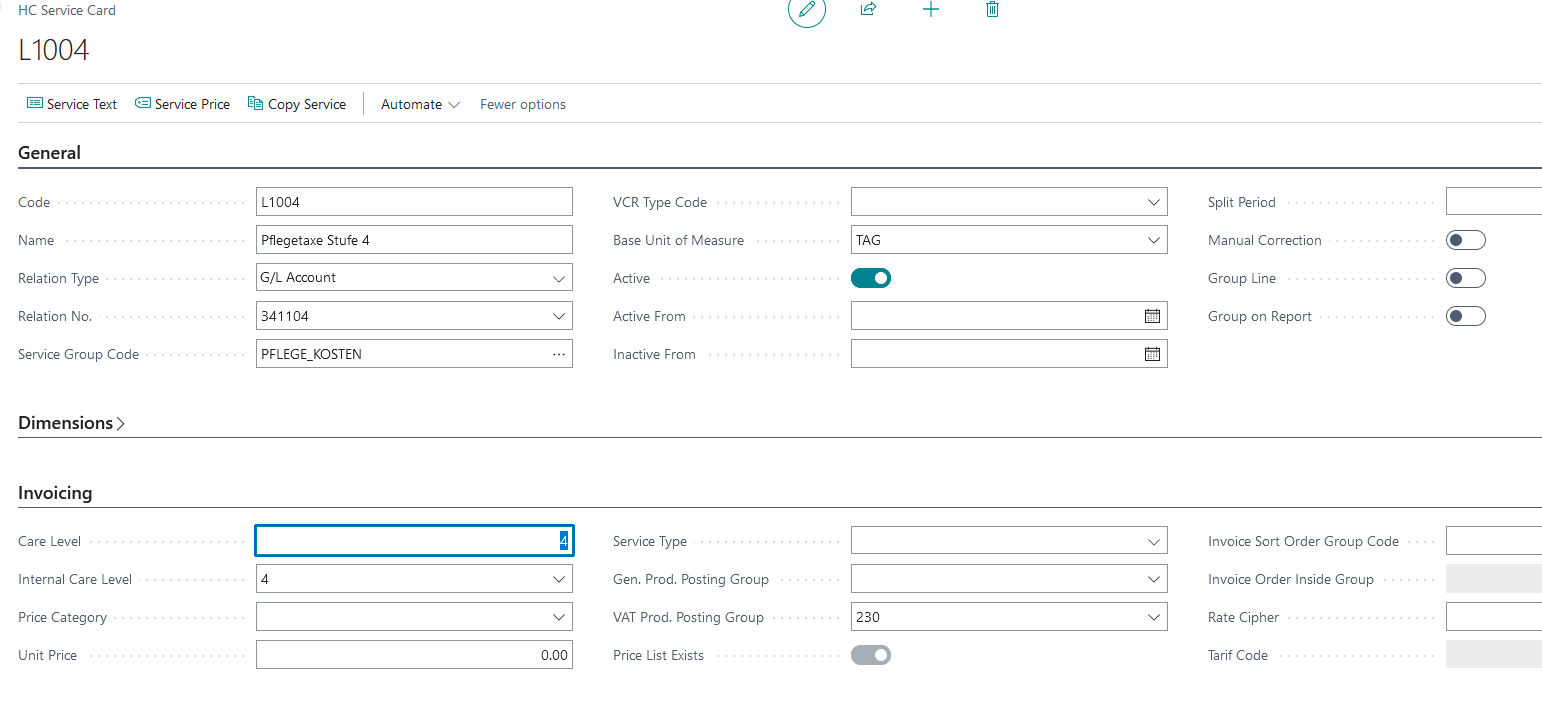
Take a look at the pricing, here you'll see a lot of prices which are particular samples for Switzerland. For our story, as our institution is in canton of Aargau (AG) and as our beneficiary kind is Long-Term it should take the underlined line.
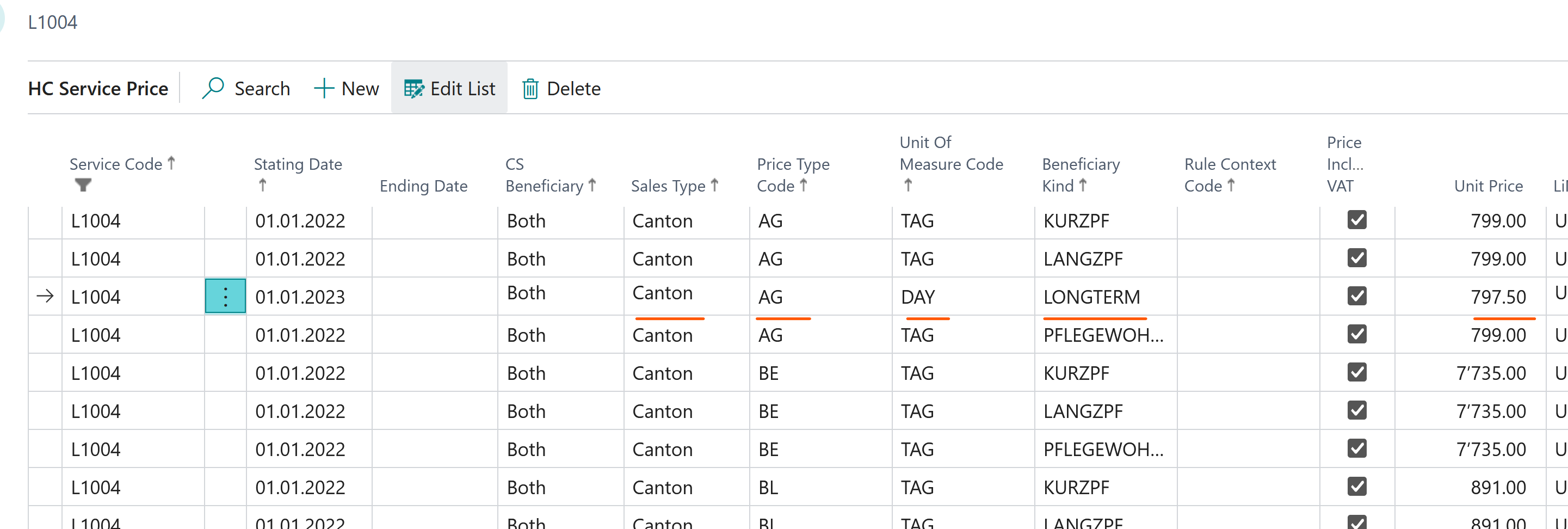
Don't forget to activate this service for your institution using menu Service by Institutions.
Synoptic for E-Care room price determination
The rules
You can find all related information to setup the rule here. For our example, the rule must be setuped as below:
Rule for the infrastructure
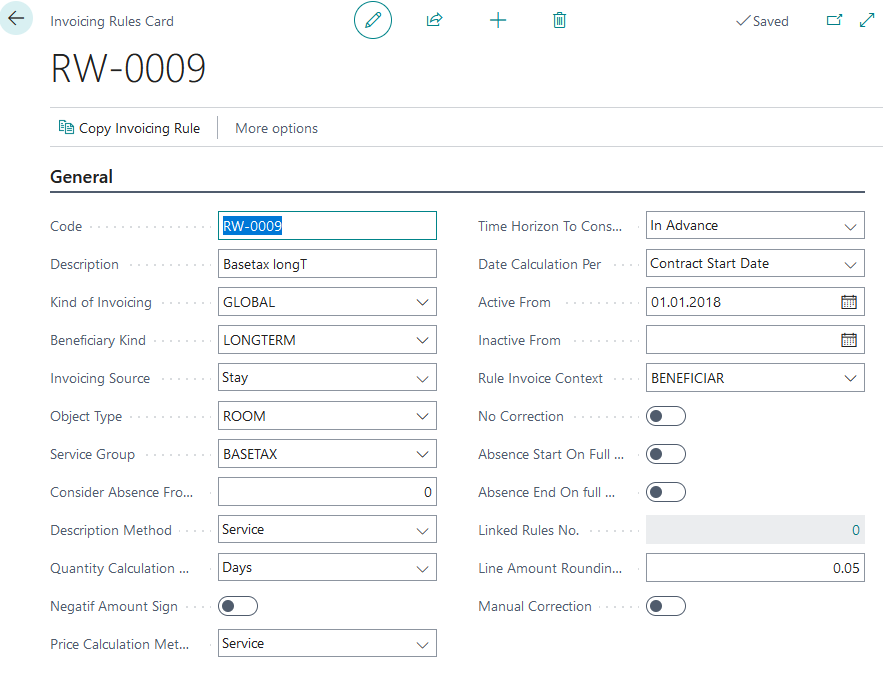
It's essential to enter the object type (Rooms; Apartments;..) on the rule.
Rule for the nursing care (evaluation)
For the evaluation, the rule is based on the evaluation.
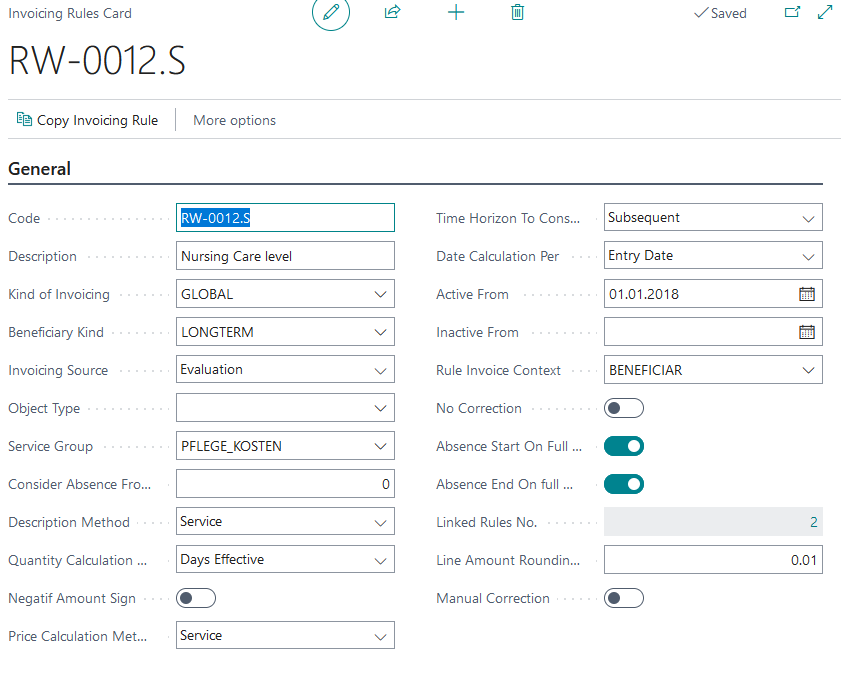
You notice that there are Linked Rules, which indicates that E-Care also calculates the linked rules but in negative amount. This is a legal requirement to indicate to the beneficiary the share to be paid by insurance and/or the public authority.
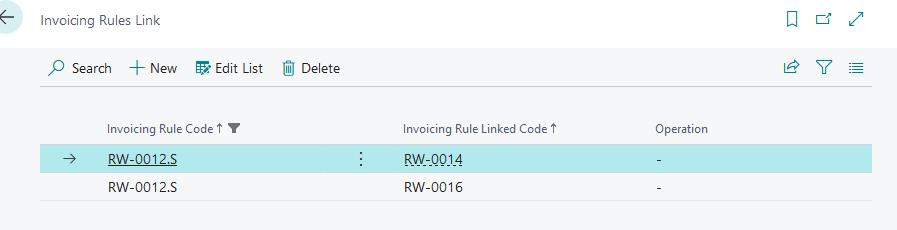
Don't forget to activate this rule for your institution using menu Invoicing Rules by Institutions
The calculation
to compute your first settlement, read this part: Calculate a settlement
the calculation Result
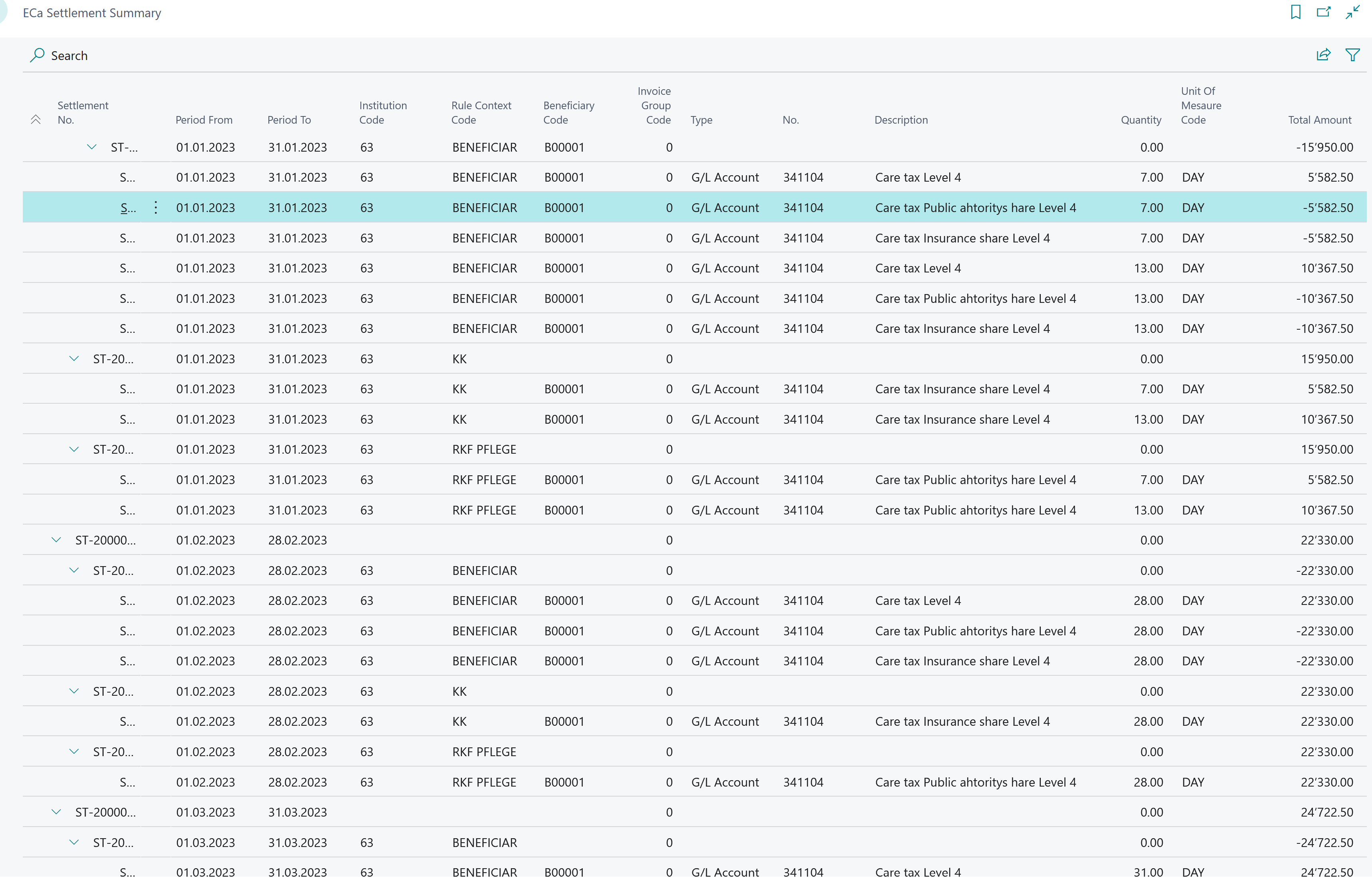
In the picture below, you see the result for a calculation from 01.01.2023-31.03.2023 Don't forget, descriptions and amounts are examples values. You can read these Settlement Entries as follow: In the Period From, you see that the system splits all settlements by month.
For January, it calculates 9 days and 22 days for the Base tax for living (infrastructure). It's because we received the evaluation from the 10.01.2023 which cause a period break. (1-9 & 10-31)
You notice a Care Tax calculated only for the presence days (remember the absence between the 16-19), thus we have a block of 7 days (from 10 to 16) and a second one of 13 days (19 to 31).
In the Rule Context Code column, you can understand to whom the amount will be invoiced.
For the next months, you observe that they are calculated in one block as we have no absence, neither stay change nor evaluation adaptation.
Below, the chart revealing the timeline and events for our example:
