Import Ambulatory Data
Explanation
Before stepping in the settlement and invoicing process, all billing information from the ambulatory application must be imported. Important is the format of the data transferred. Actually, E-Care supports CareCoach format. The ambulatory is based on the 3 levels of services well known in Switzerland, A, B and C (Clarification & consultation, examination & treatment, basic care).
In addition, the ambulatory import can manage Material and LiMed items.
Setup ambulatory
Before using the import process, some setup are needed.
- Service mapping
- Territory pricing
Under the menu, select Ambulatory | Ambulatory Configuration. The first setup is the ambulatory service mapping. Here, you have to map the A,B,C code in the file with your related services. Each service can be mapped to a service code for the insurance, the public authority (PA) and the patient part deduction for the PA. Mostly, each services will be grouped by day.
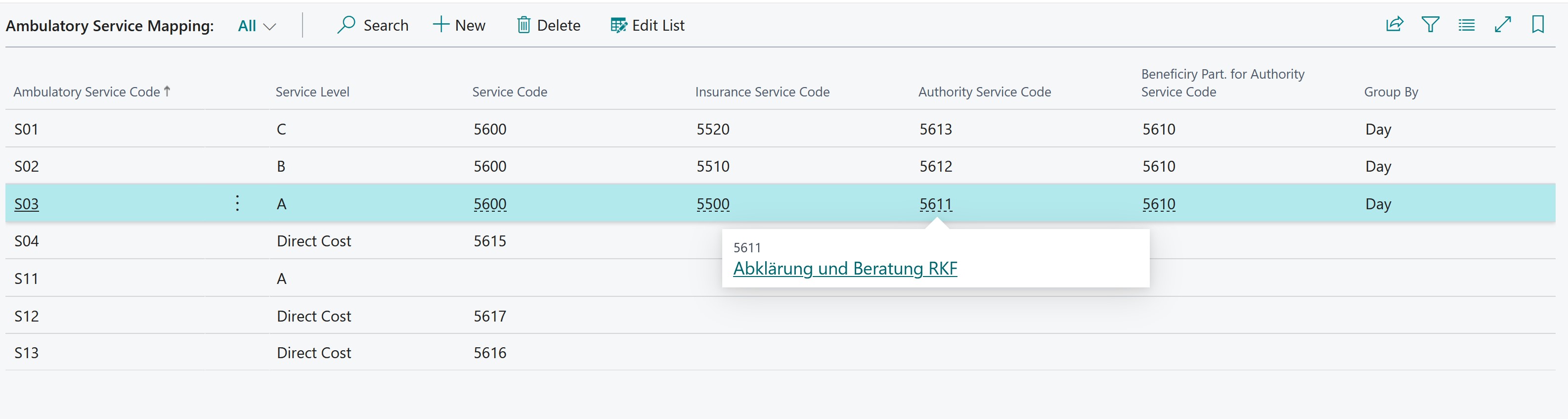 See here for more information.
Under the menu, select Ambulatory | Ambulatory Configuration. The second setup is the ambulatory territory price. Here, you specify for each teritory (canton) the price for each service, each part (insurance, public authority, beneficiary max amount) for a specific period. The age limitation can also be defined. See sample below
 See here for more information.
Setup LiME
See here for more about LiME.
See here for service.
See here for beneficiary
Import Data
first of all, you have to put the list in Edit Mode. Then, specifiy under the menu, select Ambulatory | Import File. On the opened page, you see previous imported data (in green).
Process Data
After import:
- for a Spitex you can
- for some reason, Avoid/Allow invoicing to lock/unlock the billing of selected line(s)
- Acknowledge the error - means you valid the error and it will be treated as is.
- for a Material you can
- for some reason, Avoid/Allow invoicing to lock/unlock the billing of selected line(s)
- for a LiMed you can
- for some reason, Avoid/Allow invoicing
- when billing to beneficiary is correct, force invoicing to beneficiary
- when entry was pending, you can Reset LiMed waiting.
Afterwards, use the Check on the imported data. The check results should bring all lines to green otherwise you've to verify:
- for a Spitex:
- Red Line: Missing stay in the period. Missing Beneficiary.
- for a Material:
- Red Line: Missing Service, missing Beneficiary
- for a LiMed:
- Red Line: Missing Service, missing Beneficiary
- Italic Blue Line: the LiMed is in a wait state, which means
- the beneficiary has no prescription for this LiMed item/family.
- You can either Reset the waiting state what will recheck the line
- or Change to Material which will result in the beneficiary being billed
- the beneficiary has no prescription for this LiMed item/family.
- the LiMed is considered as Material, which means
- the Service has no LiMed configuration, it'll be processed like material
After what, you can
- Adjust data
- Generate Settlement
- Calc Settlement (for SPITEX, this computes the values based on the canton and territory pricing)
verify the results
Under Ambulatory | Ambulatory Settlement Entry*: set the Institution filter and the Beneficiary to analyze.
