UNDER CONSTRUCTION
Explanation
After a settlement calculation, you can check your result before generating the documents, using a verification Page called Control.
Here, you can review and confirm the various amounts calculated for different categories, such as insurances, authorities, gastronomy, ambulatory services, and "LiMed" values. Take your time to ensure everything looks accurate.
Once you're satisfied with the calculations, you can validate them and proceed to generate the necessary documents. But don’t worry—you don’t have to validate everything at once! If you only want to confirm certain calculations (for specific beneficiaries), you can do that and move forward with those. For the others, you can make adjustments to your settings and recalculate them later.
This flexible approach allows you to work at your own pace and ensure everything is just right before finalizing. Ready to get started? Simply review, validate, and generate your documents with ease!
Let me know if you'd like further adjustments! 😊
Use this page to check different amounts before generating documents. This step is simpler if corrections are required.
Activating Control
In the E-Care SetupE-Care Setup page, you can easily manage the use of the Control feature. By toggling the activation flag, you can choose whether to enable or disable Control.
- When activated, the Control menu will be visible, and the Control screen will automatically appear after a settlement calculation.
- When deactivated, the Control menu will be hidden, and the Control screen won’t show up after calculations.
This gives you full control over how and when the Control feature is used, making it easier to tailor the process to your needs. Simply toggle the flag to customize your experience! But, by turning this off, the associated processes will be bypassed. Make sure this aligns with your workflow before proceeding!
By turning the Control off, please note that it will override two important functionalities:
- The "Controlled by" feature, which tracks who has reviewed and approved the calculations is disabled
- The locking of the settlements will be disabled and approved settlements could be deleted.
Setup Control columns
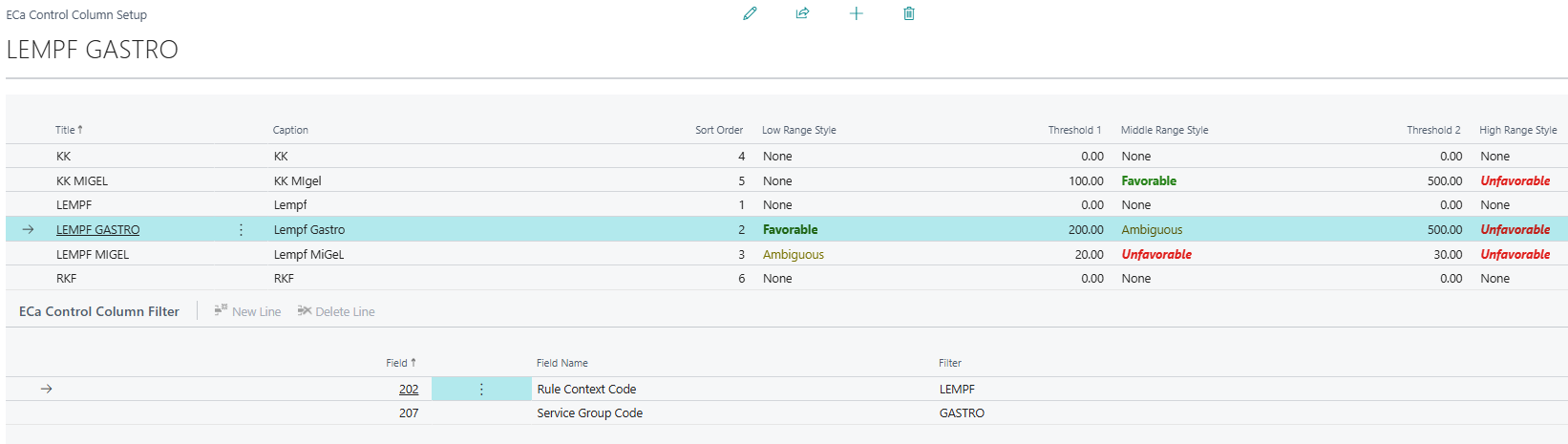
On the Control page, you find Setup columns under the Action|Setup menu. Here you can create different columns. For each column, below you can define the filters to get the values. At a Glance: Spotting Cases to Analyze: add different Thresholds values and colors, based on calculated amounts. With this feature, you can quickly identify cases that need further review.
In the example below, we have 6 columns, and the Gastro will be filtered based on the Rule Context Code and the Service Group Code. The thresholds are: for amount below 200.00, it's green, between 200.00-500.00 it's orange and acceptable, and a value over 500.00, for gastronomy, stands out as unusual and may require closer inspection. This allows you to easily spot anomalies or outliers that need attention, ensuring everything is accurate and consistent.
The Use of Control
From one screen, the Control page, you have full control over your workflow. To open the page, you can go through Beneficiary List, menu Actions|Control or form the settlement entries of a beneficiary, using Control menu. Here’s what you can do:
- Review calculated values to ensure accuracy.
- View stays and evaluations for detailed breakdowns.
- Valid Control validates individual or multiple settlements at once.
- Generate documents effortlessly.
- Preview documents before posting.
- Post documents to confirm they’re ready.
- Access posted documents for reference.
- Mass Printing: Print in bulk to save time print all documents.
Everything you need to manage, validate, and finalize your process is right here. Start exploring and make your workflow smoother than ever!
